Enterprise Process Catalog
The Enterprise Process Catalog expands the scope of the metadata catalog to include the operational fabric of data ecosystems, bringing ETL workflows, warehouse jobs, and transformation logic into a unified, governed view. Rather than treating processes as opaque back-end constructs, this capability surfaces them as first-class metadata assets, enabling structured documentation, discovery, and lifecycle management.
By integrating process metadata with dataset-level context, the catalog provides a connected perspective of how data is ingested, transformed, and delivered across the enterprise. This not only improves transparency but also strengthens data reliability by making dependencies and execution logic more accessible to both technical and functional stakeholders.
The Process Catalog is particularly valuable for impact analysis and change management. When modifications are introduced to upstream logic or schemas, users can trace the ripple effects across downstream datasets and processes, reducing operational risk and avoiding unintended disruptions. It also supports faster troubleshooting by allowing teams to pinpoint where transformations occur and how data flows through various stages.
Key Capabilities
The key capabilities include:
- Centralized cataloging of ETL workflows and warehouse jobs, creating a unified inventory of batch and pipeline processes across heterogeneous platforms
- Lineage-driven visualization of process scripts, with direct linkage to datasets within the metadata catalog for contextual navigation
- Explicit mapping of input and output datasets, enabling clear traceability of data movement across transformation layers
- Process-to-data association, allowing users to understand how specific jobs contribute to dataset creation, enrichment, or aggregation
- Enhanced impact analysis, supporting proactive assessment of upstream and downstream dependencies during changes
- Improved operational visibility, facilitating faster debugging and performance monitoring of data workflows
Collectively, the Enterprise Process Catalog transforms fragmented process information into a cohesive intelligence layer, enabling organizations to better govern, optimize, and trust their data pipelines.
In This Topic:
Accessing the Enterprise Process Catalog
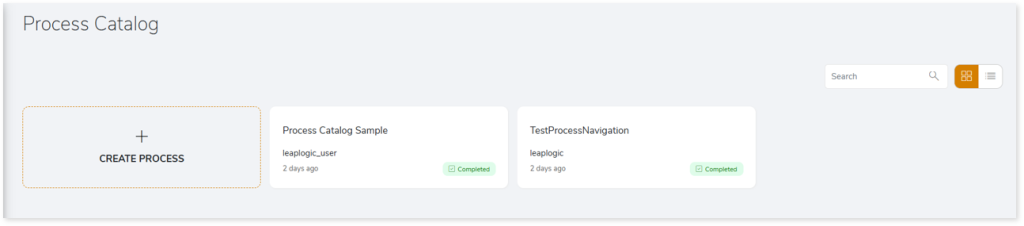
To view and manage enterprise processes, navigate to the Enterprise Process Catalog as follows:
- Log in to your Impetus LeapLogic Catalog account.
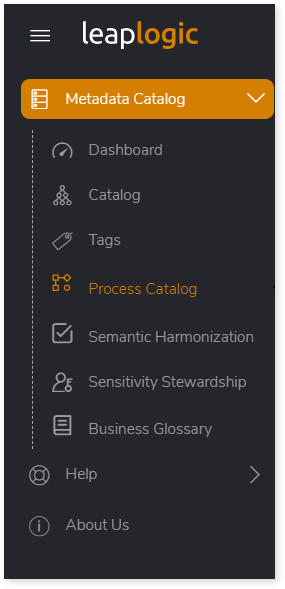
- From the left navigation pane, select Metadata Catalog > Process Catalog.
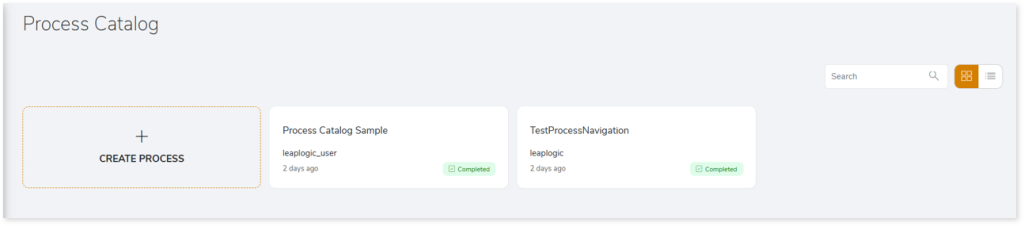
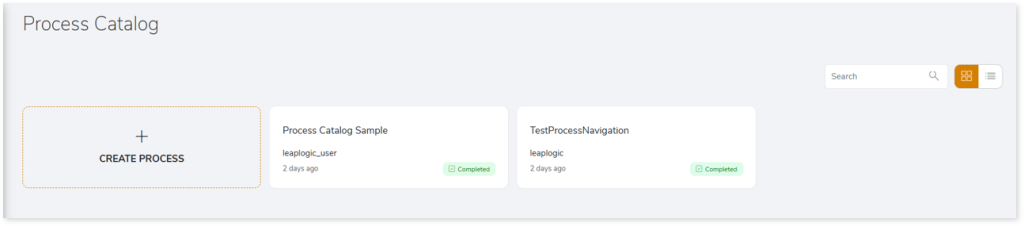
- The Process Catalog page opens, where you can view existing processes and create new processes.
Creating a Process in the Process Catalog
The Process Catalog enables you to create and manage enterprise processes by providing a unified view of processes and their associated repositories and data sources. Creating a process helps document, track, and analyze how data is ingested, transformed, and delivered across systems.
Follow these steps to create a new process:
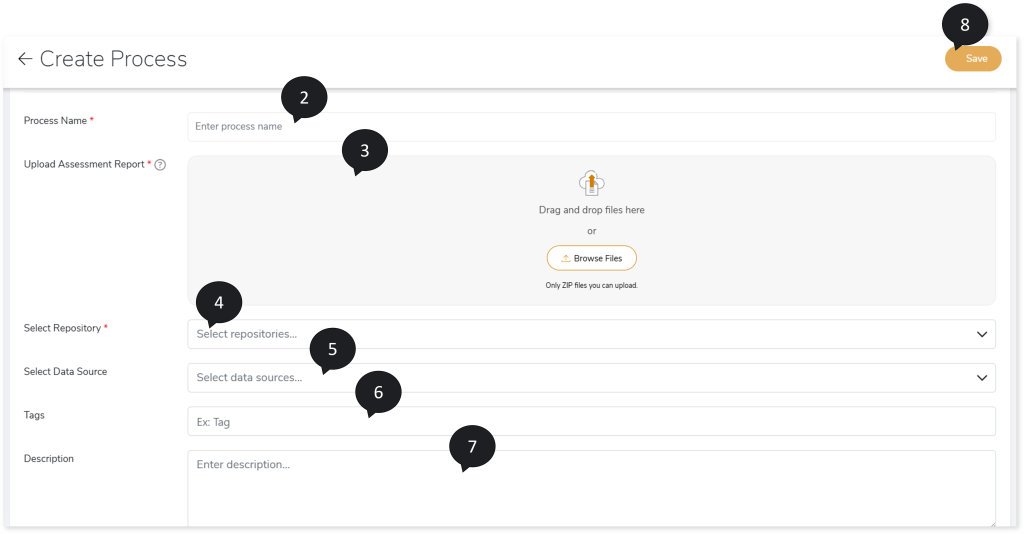
- On the Process Catalog page, click CREATE PROCESS.
- In Process Name, provide a preferred process name.
- In Upload Assessment Report, upload the Source Inventory Analysis.zip file generated from the assessment.
- In Select Repository, select Repositories.
- In Select Data Source, select the corresponding data sources.
- In Tags, enter a tag with at least three characters and press Enter to add it.
- In Description, provide a short description if needed.
- Click Save to create the process.
- After saving, a success message appears indicating that the artifact was registered successfully.

- Go to the Process Catalog listing page to view your newly created process.
Actions in the Enterprise Process Catalog
Each process catalog card provides quick actions that help you explore the process in detail or analyze how it connects to other processes and data objects.
View Details
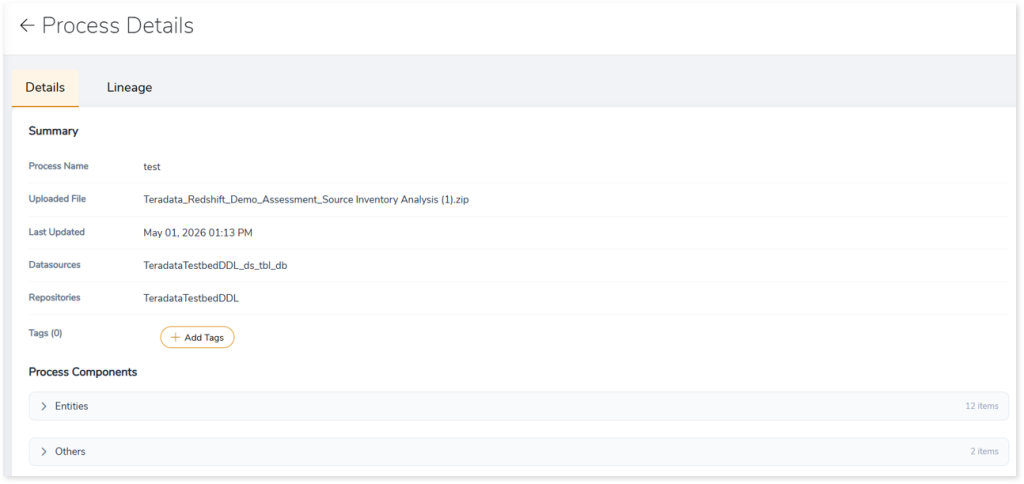
You can view detailed information about the process by clicking the generated process catalog card.
This opens the Process Details page with Details tab, where you can view:
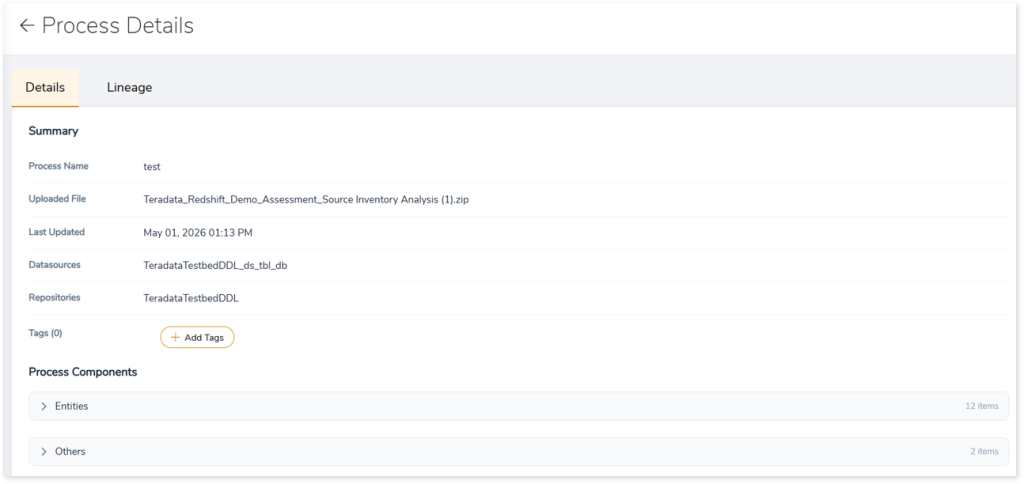
- Summary: Displays summary of the process catalog such as process name, uploaded file name, associated data sources, repositories, and more.
- Process Components: Displays all the process components associated with the process, including entities, database types, flat files, Informatica workflows, and more.
Lineage
The Lineage allows you to explore how nodes—such as entities, workflows, jobs, procedures, flat files, and more—are connected and understand their interdependencies. It also identifies the complete dependency structure, offering interactive drill‑down options that let you trace relationships down to the last level.
To view lineage:
- Click the Lineage tab on the Process Details page.
- In the Lineage tab, enter a keyword or node name in the Search Keywords field.
- Click Search to generate the lineage.
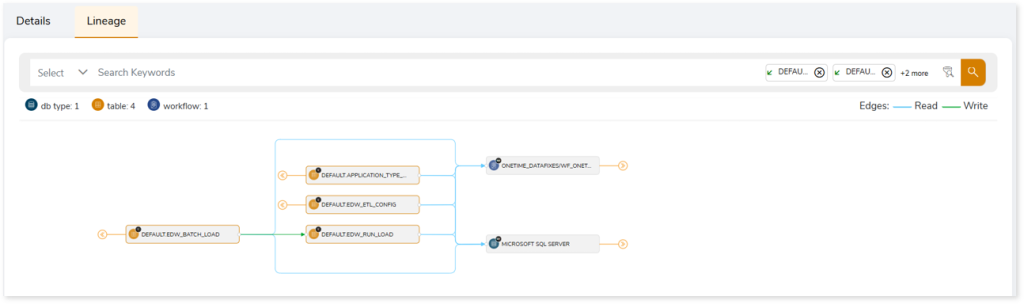
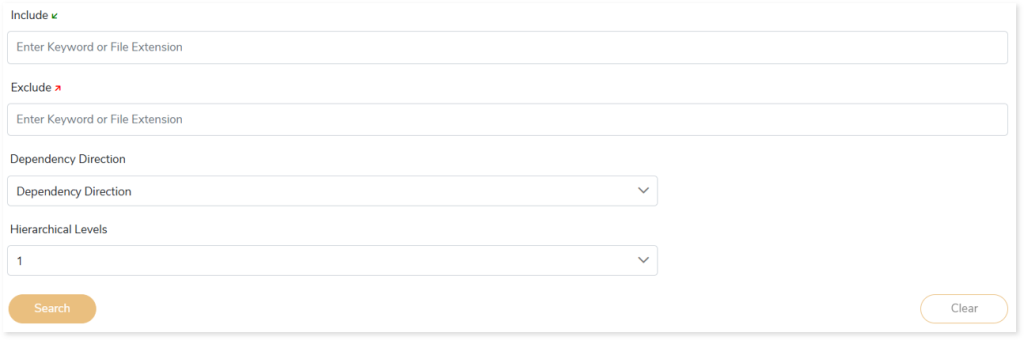
In addition, the filter search icon allows you to include or exclude particular nodes to obtain the required dependency structure. It helps you quickly narrow down complex dependency graphs to focus on the exact nodes, relationships, or data flows you want to analyze. Instead of navigating through an entire lineage network, you can apply filters based on object names, types, or relationship categories—making it easier to isolate specific tables, workflows, or transformation paths. This feature enhances traceability, reduces visual clutter, and enables you to precisely identify upstream or downstream dependencies that are most relevant to your analysis or migration scope.
You can also choose the direction of the lineage. The Left to Right Hierarchy helps you to identify and analyze upstream data connections and relationships. You can also choose Right to Left Hierarchy – most useful for how data is getting consumed through the downstream route and which are the participating tables and columns, or Bidirectional dependency direction to visualize both kinds in a single view.
Moreover, you can also increase the Hierarchy Levels to nth level. This again allows great freedom to visualize the end-to-end hierarchy in one go.
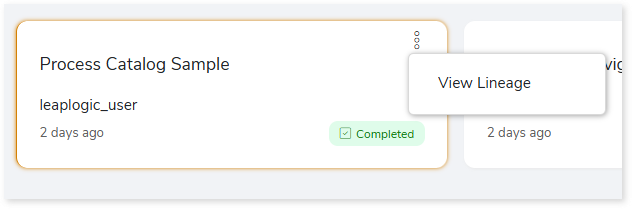
You can also view lineage directly from the Process Catalog page by selecting More Actions > View Lineage on the required process catalog card.
 Leaplogic