Configuring Cobol
This topic provides steps to configure Cobol conversion stage.
- In Source Type, select the Mainframe script type as Cobol.
- In Input Artifacts, upload the source scripts.

- In Target Type, select a target platform such as Databricks Notebook.
- In Output Type, select Python or Jupyter as the output type format for the generated artifacts.
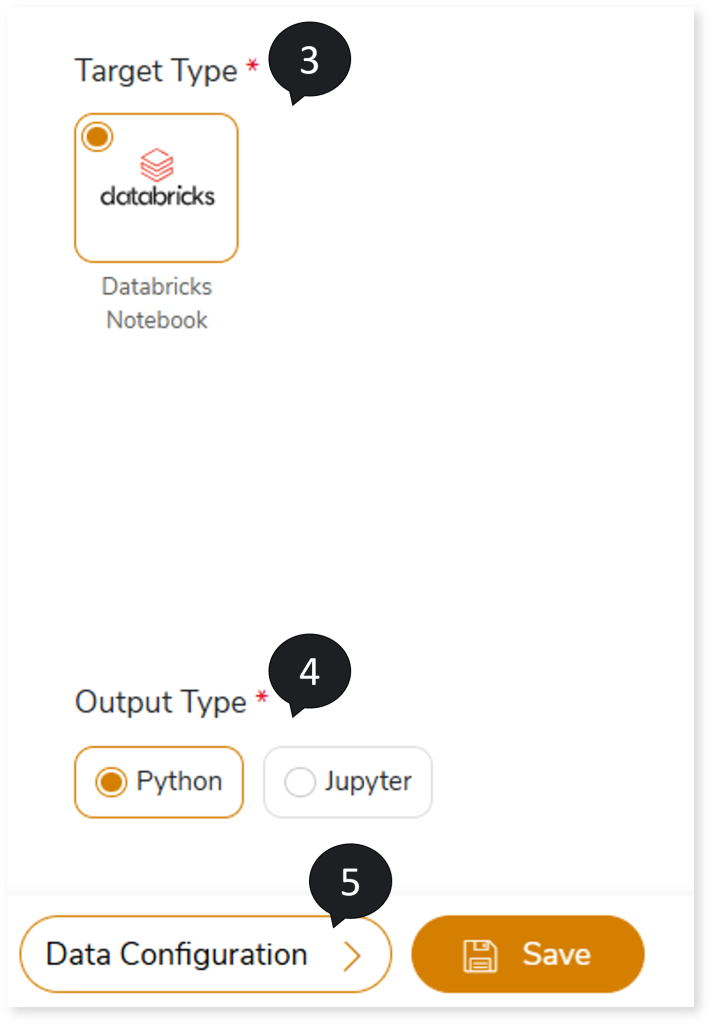
- Click Data Configuration.
- In AI Augmentation, select the preferred Transformation and Review models to convert queries that require augmented transformation and perform syntax validation for accuracy and optimal performance.
- In Transformation Model, select the preferred Transformation model to convert queries that are not handled by the default LeapLogic Core transformation engine to the target equivalent. The Transformation Model supports both Open-Source AI models (LeapLogic) and Enterprise AI models (Databricks AI, GitHub Copilot, Amazon Bedrock such as Claude, Nova, etc.) for query transformation.
- In GitHub Access Token, provide the GitHub access token to allow platform to read your repositories.
- In Additional Prompt, provide supplementary instructions in addition to system-generated prompts.
- In Response Fine Tuning, provide examples based on the additional prompt to fine-tune the response to align the generated output with your preferred level of detail.
- In Review Model, select one or more Review models from to perform syntax validation on the queries transformed by the LeapLogic Core engine and the Transformation Model. The Review Model validates the transformed queries syntactically, excluding any procedural logic, and suggests corrections where required. You can configure multiple Review models. When multiple Review models are configured:
- The first Review model validates the queries transformed by the LeapLogic Core engine and the Transformer model. It validates the transformed queries syntactically, excluding any procedural logic. If any queries are identified as incorrectly transformed, it suggests updated queries.
- The updated queries are then passed to the next Review model, which validates them and suggests corrections, if required.
- This process continues through all configured Review models until the queries are successfully validated, and the optimized queries are generated.
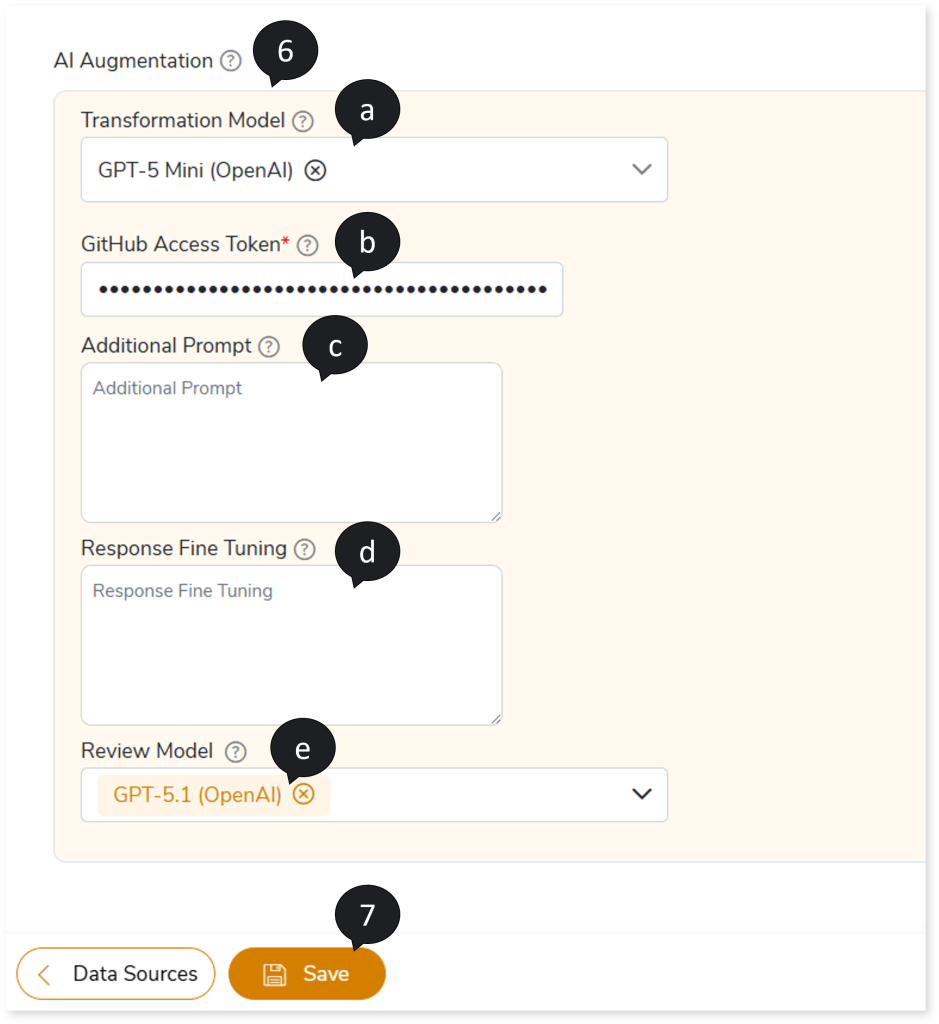
- Click Save to save the Mainframe stage. When the stage is successfully saved, the system displays an alerting snackbar pop-up to notify the success message.
- Click
 to provide a preferred pipeline name.
- Click
 to execute the integrated or standalone pipeline. Clicking (Execute) navigates you to the pipeline listing page which shows your pipeline status as Running state. It changes its state to Success when it is completed successfully.
- Click on your pipeline card to see reports.
To view the Cobol Conversion report, visit Cobol Conversion report.
 Leaplogic