Reports
The View Reports page lists all executed lineages. From this page, you can view and access lineage details to gain deeper insights into the source inventory and data interdependencies. Additionally, it allows you to create new lineage maps and provides information about the anticipated quota consumption when executing transformation pipelines or notebooks.
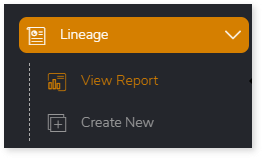
To view the report of the executed lineage, go to Lineage > View Report and then open the preferred report.
In this Topic:
Lineage Maps Overview
Here you can see features that provide quick access to lineage execution details on the Lineage Maps page.

The My Lineage Maps section displays all lineage maps that you have created or executed. From this section, you can create new lineage maps, review execution outcomes, and manage existing lineage executions.
Each lineage map report card provides high-level details, including:
- Lineage name: Displays the name of the lineage.
- Source and target platforms: Displays the source and target of the lineage maps.
- Timestamp: Displays the date and time of execution.
- Stage Progress: Displays which stage is in progress (current stage) out of the total stages (e.g, Stage 2/6).
- Execution status: Indicates whether the lineage execution was successful, failed, submitted, or still running.
When a lineage execution completes successfully, the lineage maps report card shows a Success status.
More Actions
Each lineage map report card includes a More Actions (⋮) menu that allows you to perform additional operations on the selected lineage map, such as viewing reports, checking quota usage, reviewing configuration details, downloading execution logs, and more.
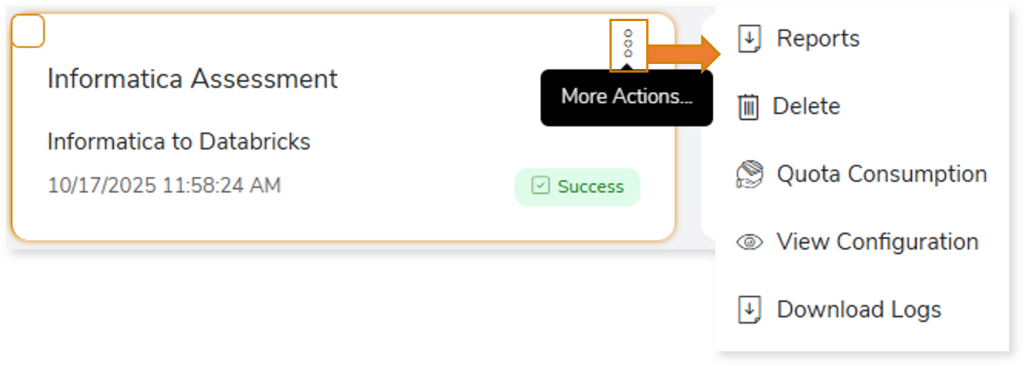
Available options:
- Reports: Opens the lineage Report page.
- Delete: Deletes the created or executed lineage map.
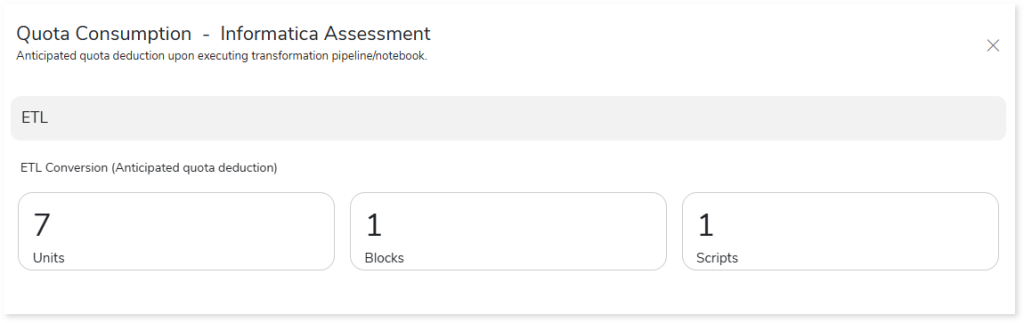
- Quota Consumption: Displays the anticipated quota deduction when executing a transformation pipeline or notebook.
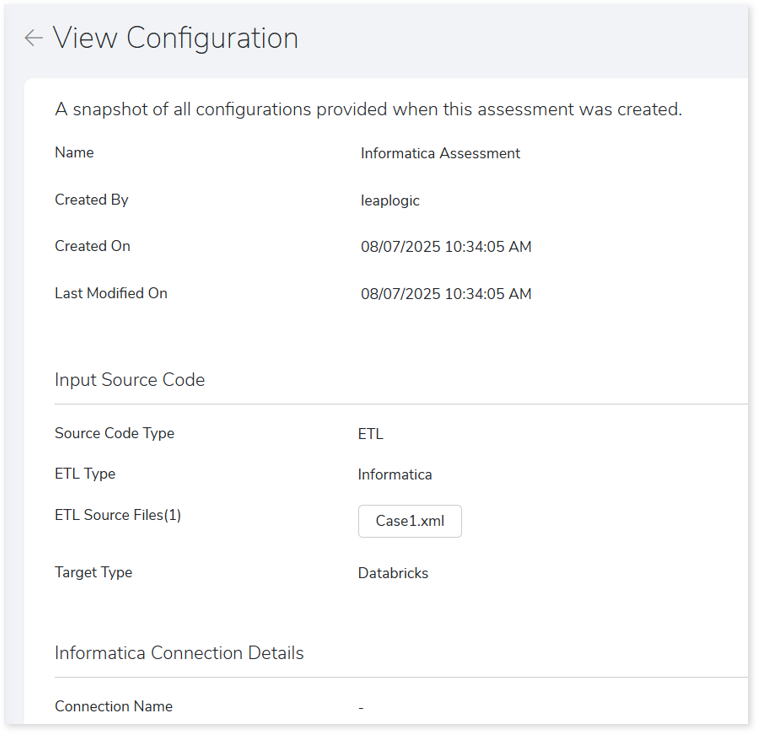
- View Configuration: Opens the configuration page of the selected lineage map.
- Download Logs: Download execution logs to monitor assessment and lineage activities and identify potential issues. The downloaded log folder contains:
- Two .log files:
- Assessment Log: Captures detailed runtime information related to the assessment execution.
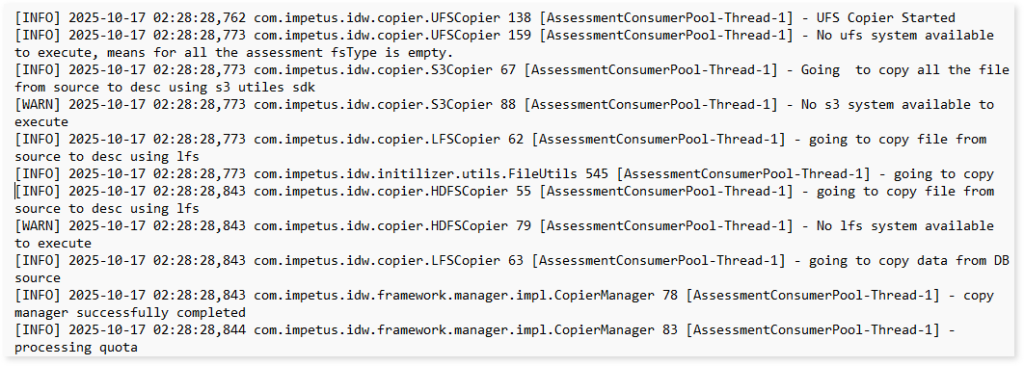
- Lineage Log: Captures detailed runtime information related to the lineage analysis during assessment execution. It helps you understand the flow of lineage operations and identify any missing components or skipped steps.
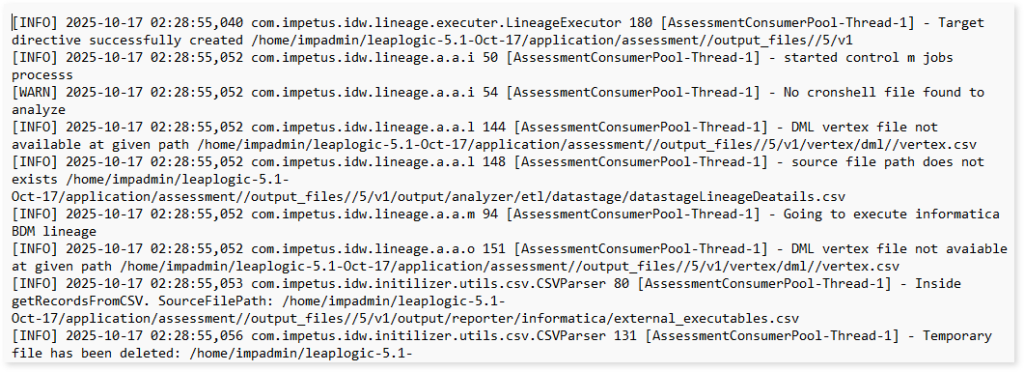
- Two subfolders and error snapshot:
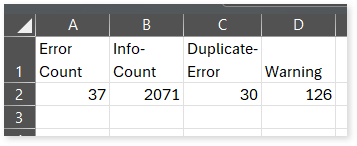
- Assessment Log Folder: Contains a CSV file with information about number of errors, informative messages, duplicate errors, and warnings recorded during the assessment process.
- Error Snapshot: This image captures the root cause of the errors encountered during the assessment.
- Lineage Log Folder: Contains a CSV file with information about number of errors, informative messages, duplicate errors, and warnings recorded during the lineage process.
When an assessment fails, the report card shows a Failed status.
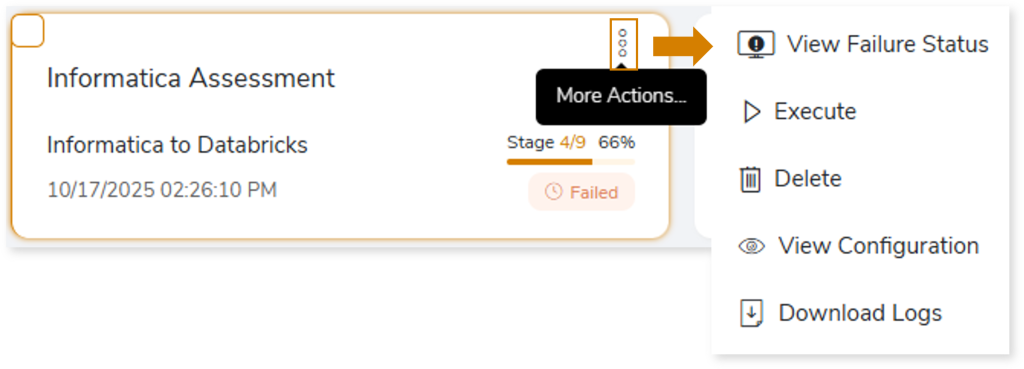
Click More Actions to access additional features, including:
- View Failure Status: Opens the Assessment Execution Status dialog, where you can view a detailed message explaining the error or the reason for failure.
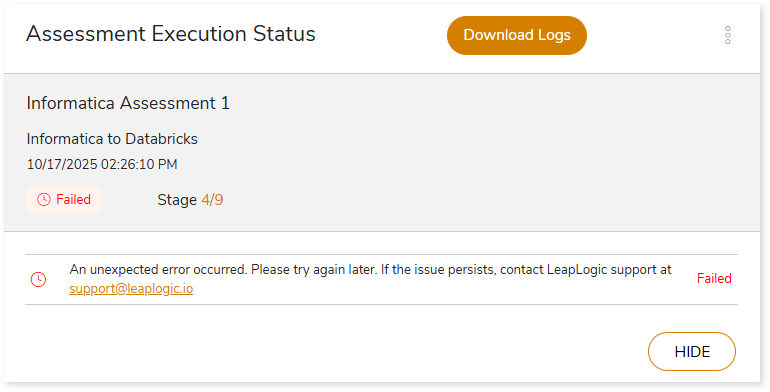
- Execute: Re-runs the failed assessment.
- Delete: Deletes the selected assessment.
- View Configuration: Opens the configuration page of the selected assessment.
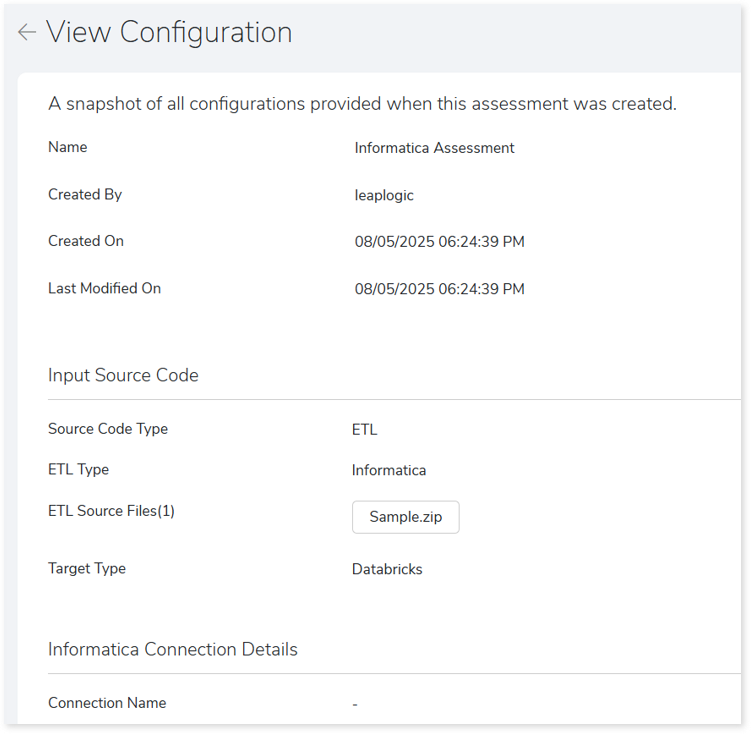
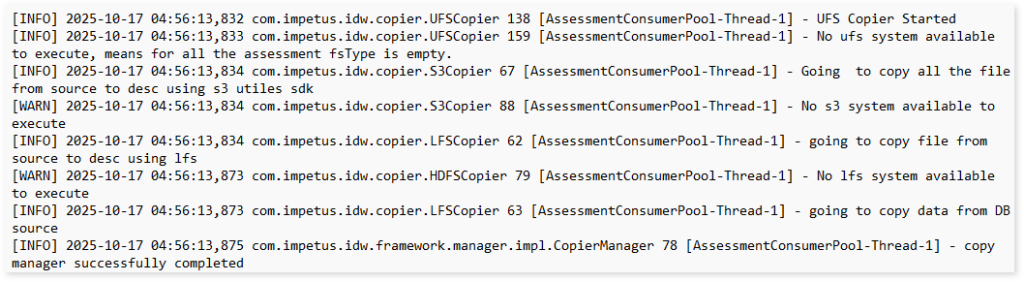
- Download Logs: Download execution logs to monitor assessment activities and identify potential issues. The downloaded assessment log folder contains:
- Assessment Log File: Captures detailed runtime information related to the assessment execution.
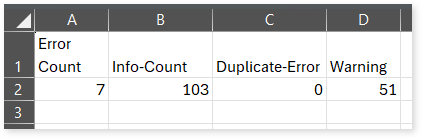
- Assessment Log Folder: Contains a CSV file with information about number of errors, informative messages, duplicate errors, and warnings recorded during the assessment process.
- Error Snapshot: This image captures the root cause of the errors encountered during the assessment.
On the Assessment listing page, you can also get some additional features, like:
- CREATE ASSESSMENT: To create a new assessment.
- Delete: To delete the created assessment. To do so, you need to select the created or executed assessment report card and click
 .
.
Supported Features
LeapLogic provides convenient access to the assessment report with easy browsing options. The table below shows additional features that enhance the user experience.
 Leaplogic