Creating AI-Powered Lineage
The AI-Powered Lineage feature enables you to analyze workloads—such as mainframe artifacts (JCL, COBOL, and Easytrieve)—using advanced AI models (Amazon Bedrock Claude, Nova Lite, Github Copilot, etc.). This capability helps you gain a deeper understanding of your inventory by automatically identifying patterns, code quality insights, dependencies, entities, and more, without manual effort. This topic guides you through the process of creating an AI-Powered lineage.
Follow the steps below to create an AI-Powered lineage.
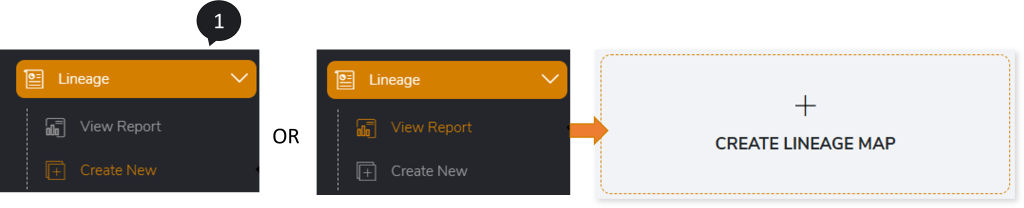
- Select Lineage > Create New or Lineage > View Report > CREATE LINEAGE MAP on the left navigation pane.
- The Create Lineage Map page opens. In Name, enter a preferred lineage name.
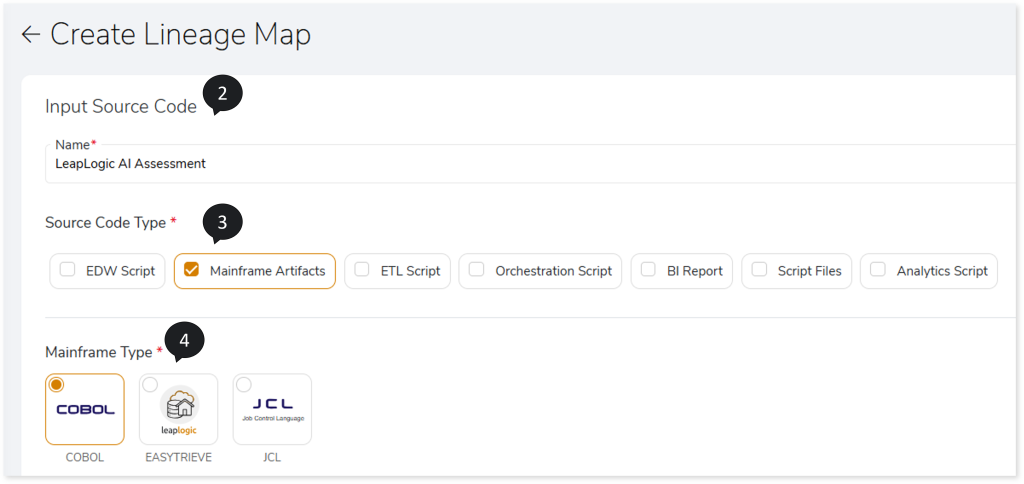
- In Source Code Type, select the type of source code you want to assess such as Mainframe Artifacts.
- Based on the selected Source Code Type, choose the corresponding source details. If you select Mainframe Artifacts, select the Mainframe Type such as COBOL, JCL, or Easytrieve.
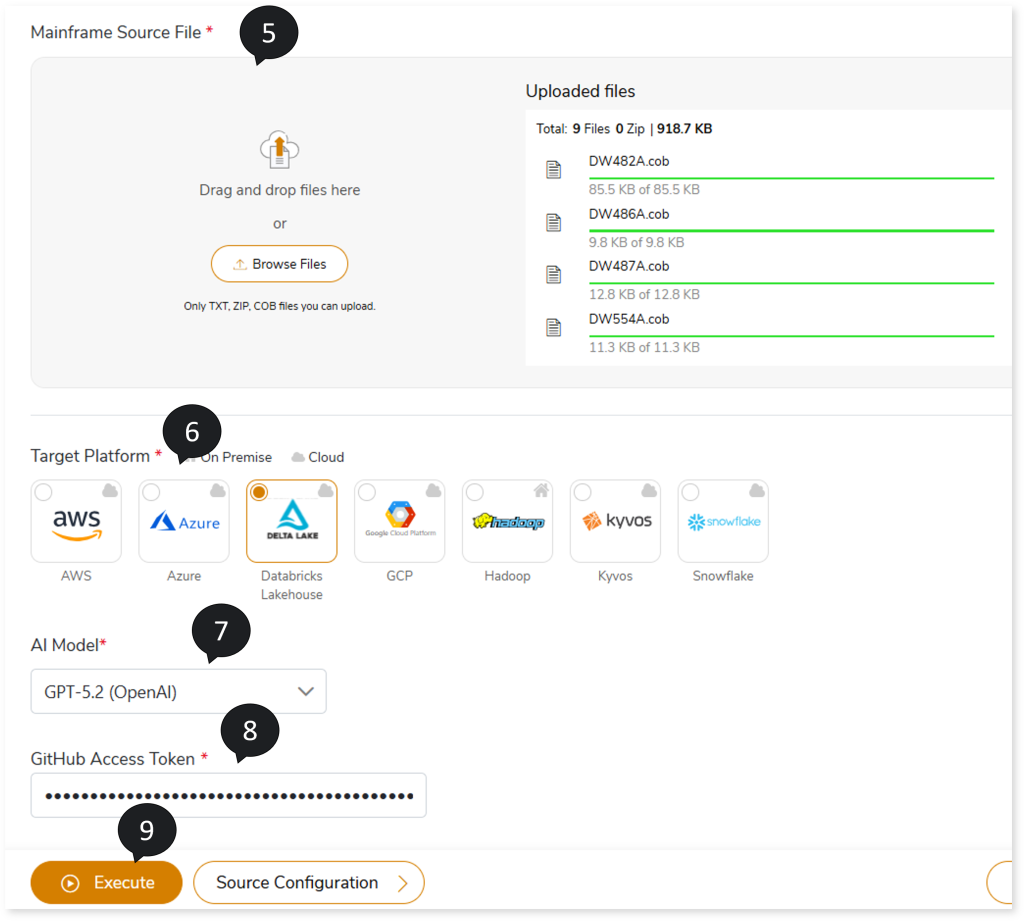
- Once you select the source code type and the source, a corresponding field appears that allows you to upload the source files you want to assess. Upload the files in the Source File field.
- In Target Platform, select your preferred target platform.
- In AI Model, select an AI model that you want to use to carry out assessment of your workloads.
- In GitHub Access Token, provide the required token to connect to the selected AI model.
- Click Execute to generate insights about your workloads.
- After you click Execute, you are redirected to the View Report page, where you can view the lineage status as Running, Failed, Success, Queued, or Saved.
- After the execution is complete, click your lineage to view the details of the analyzed workloads and download the reports.
To view the AI‑Powered Assessment report, visit AI‑Powered Assessment Report.
 Leaplogic