Export ARM Template
This topic contains step-by-step instructions to export your Azure Data Factory as an ARM template.
Steps to Export ARM Template
Following are the steps to export an Azure Data Factory as an ARM template:
- Connect to the Azure portal.
- Select the required resources.
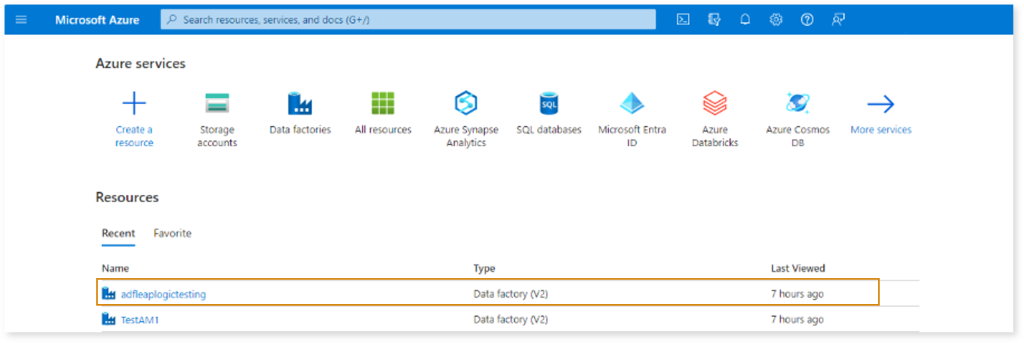
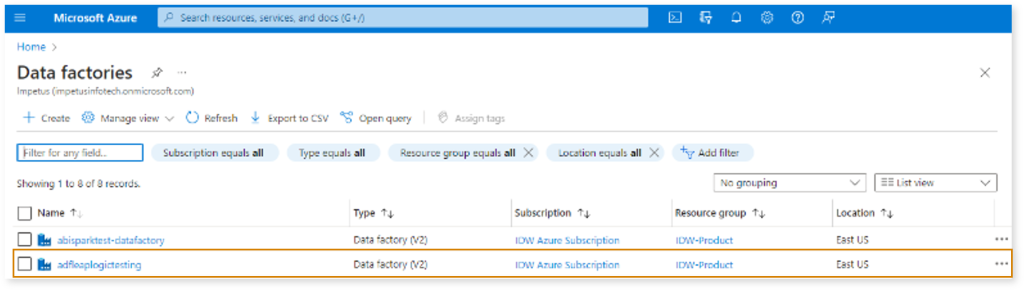
- Select the data factory from which the template needs to be exported.
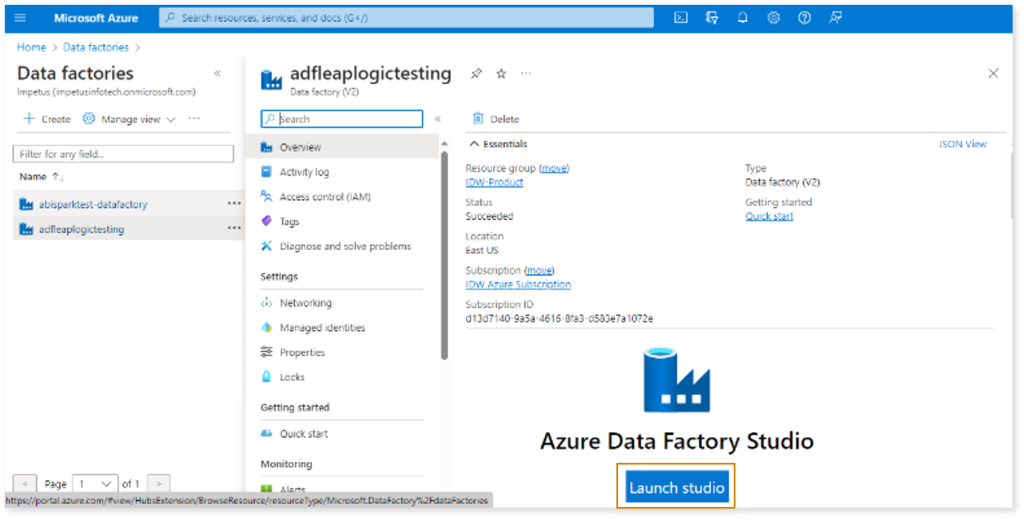
- Click Launch studio in Azure Data Factory Studio.
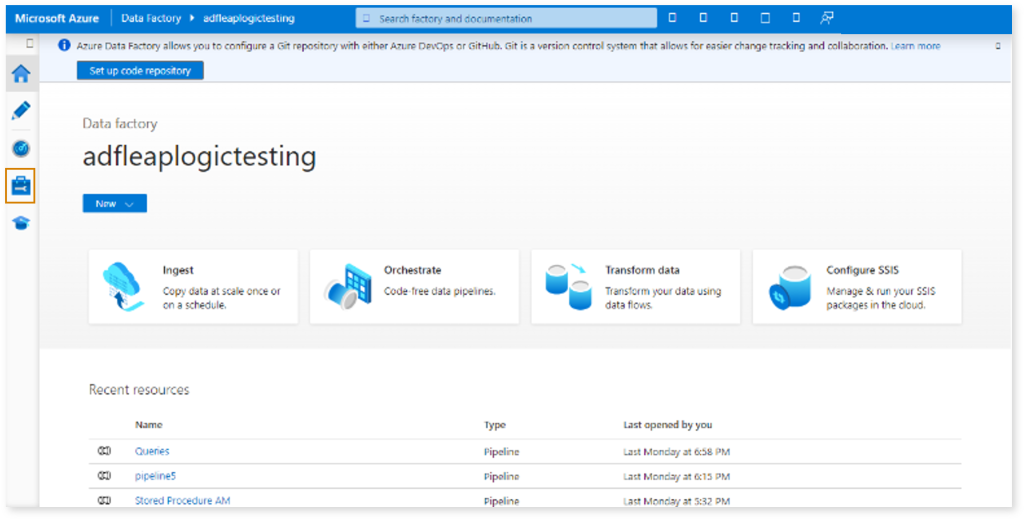
- In the left pane, select
 (Manage).
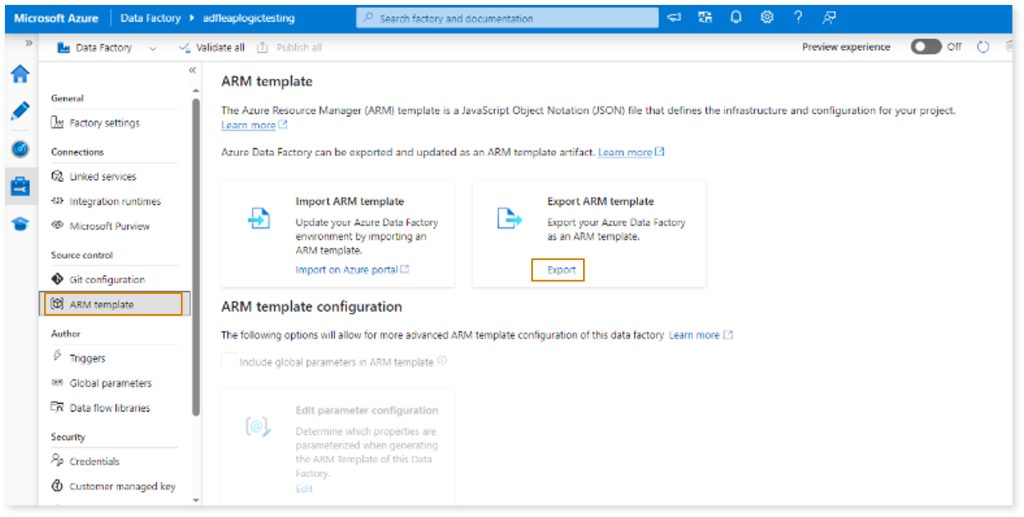
- Select ARM template from the left navigation bar.
- In the Export ARM template tile, click Export.
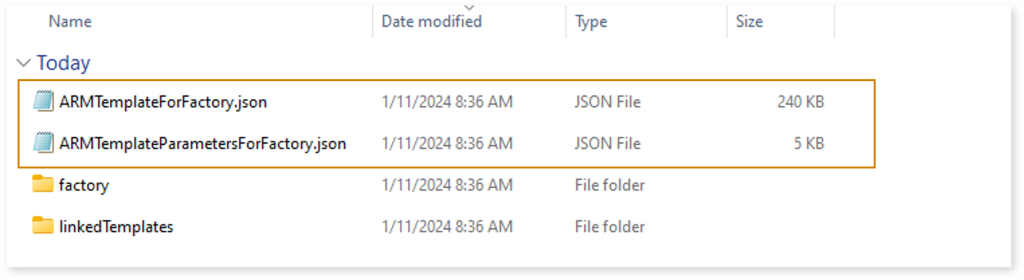
The Azure Data Factory code will be downloaded in a file named arm_template.zip. Extract the zip file and ensure that it contains the following JSON files:
- ARMTemplateForFactory.json: This file contains the entire Data Factory code.
- ARMTemplateParametersForFactory.json: This file contains parameters for the Data Factory.
 Leaplogic