Managing Data Catalog
A data catalog is a central repository that stores application metadata. It allows you to view newly added and recently accessed catalog items across repositories and data sources. In addition, you can create and manage all your repositories and data sources.
In This Topic:
Building a Data Catalog
The Data Catalog is a collection of metadata that helps you organize and manage data effectively. This topic guides you through the process of creating a new data catalog.
To create a Data Catalog, follow the steps below:
- Log in to your LeapLogic Metadata Catalog.
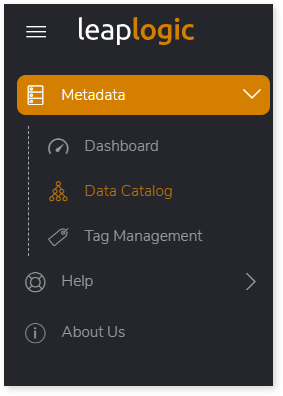
- From the left navigation pane, select Metadata > Data Catalog.
- Click + on the Data Catalog page.
- Select Repository to create a repository (server instance).

- Provide the repository details and save them.
- Add a data source to the repository by either:
- Clicking Yes in the confirmation popup that appears after saving the repository, or
- Navigating back to the Data Catalog page and clicking the + icon, then selecting Data Source.

- Enter the data source details and save them to connect the data source to the required repository.
Insights to Data Catalog
The Data Catalog provides detailed information about entities within each data source. LeapLogic organizes metadata so you can easily discover and manage large volumes of assets—including tables, views, procedures, and other entities. With unified metadata onboarding across enterprise sources and automated synchronization with evolving systems, the catalog stays consistently up to date and ready for quick refreshes.
With the Data Catalog’s list view layout, filters, and search features, you can quickly locate the data you need. In addition, the catalog offers deeper insights into each entity, including its attributes, data types, metadata, and activity history.
The Data Catalog interface allows you to:
- Create a new data catalog
- Navigate through the list of repositories
- Manage Newly Added and Recently Viewed repositories and data sources
- View the hierarchical structure of data catalogs
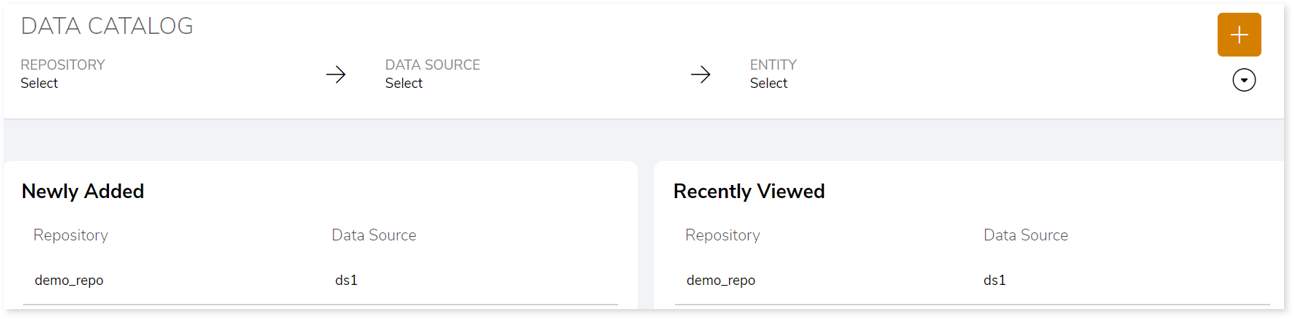
Navigating to Entity Details
To view the in-depth details of entities in each repository, follow the below steps:
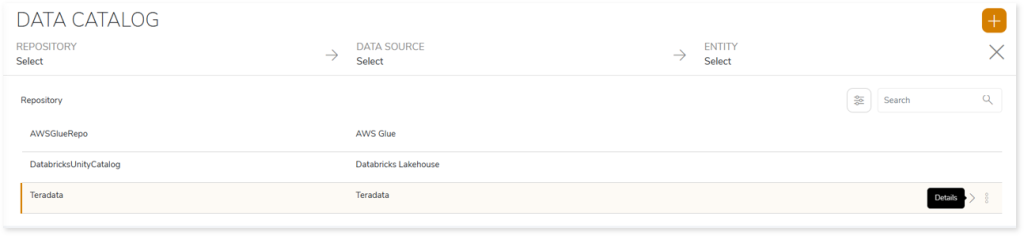
- Click Open Data Catalog.

- Click Details on the preferred repository to open the Data Source.
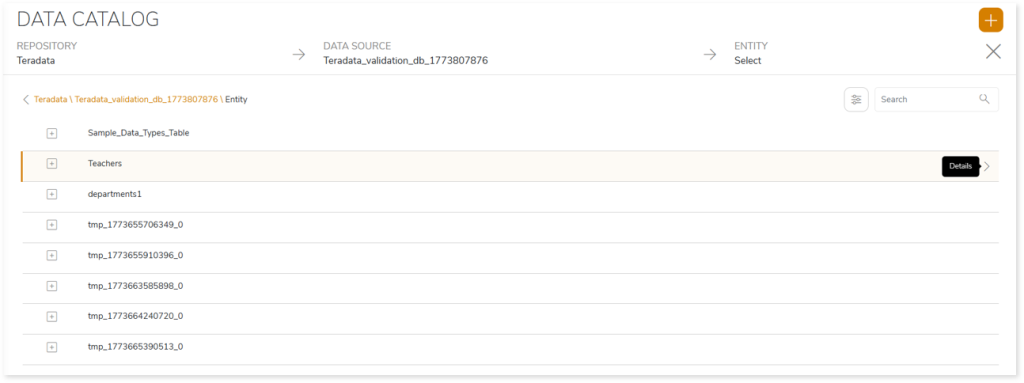
- Click Details on the Data source to view the Entities.

- Click Details on any entity to view more insights.
Entity Details
After you click Details on any entity, the system displays deeper insights into the selected entity through the following sections:
Overview
The Overview section provides comprehensive information about each entity, including its name, description, PII indicators, comments, remarks, and associated tags. It also leverages agentic AI to generate clear, contextual descriptions of the entity and keeps metadata synchronized with evolving source systems to ensure accuracy and up‑to‑date information. It automatically identifies and tags sensitive and PII‑related attributes to support compliance and responsible data use.
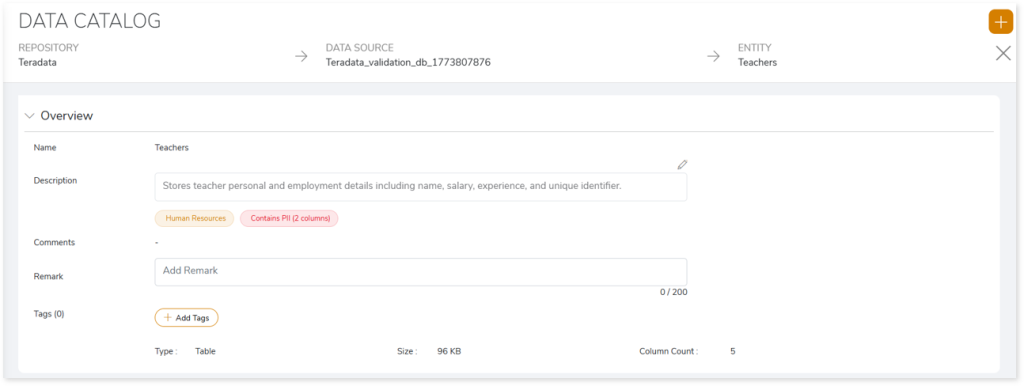
Managing Remarks and Tags
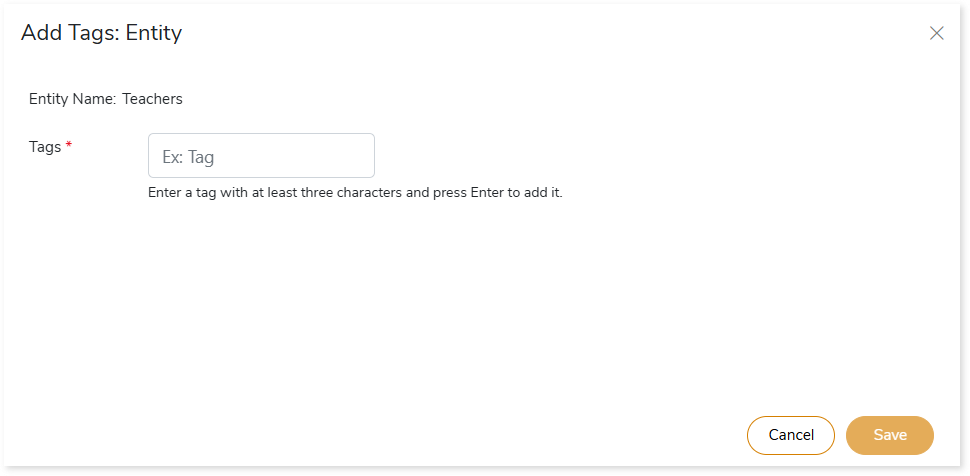
You can add or update remarks in the Remarks field and add or modify tags in the Tags field.
To add Tags:
- Click + Add Tags.
- Enter the tag in the Tags field.
- Press Enter to apply the tag.
- Click Save.
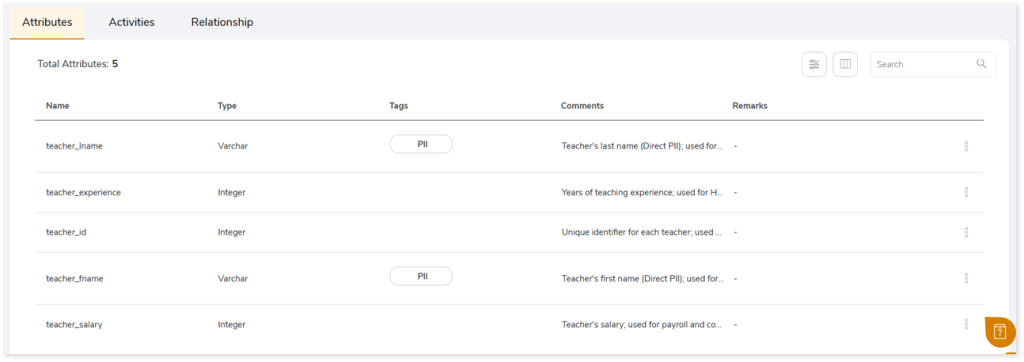
Attributes
This section lists all attributes of the entity along with their data types, tags, comments, and remarks.
Activities
This section displays all actions performed on the entity, such as adding or updating remarks, modifying tags, editing descriptions, and other metadata updates.

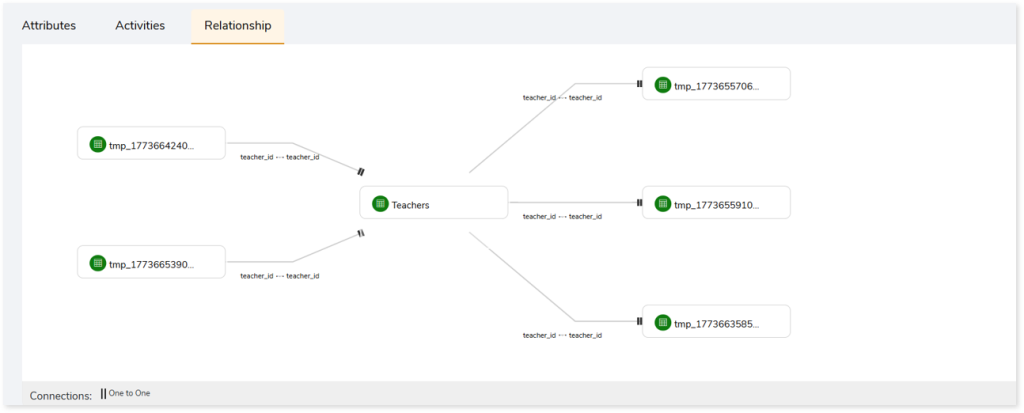
Relationship
The Relationship section displays the connections between entities. It shows how tables are related through shared column values and highlights the specific columns that establish each relationship—for example, two tables connected through a common column such as teacher_id (as shown in the image below). This view helps you understand data lineage, table dependencies, and how related entities interact within the dataset.
Managing the Repository and Data Source
This topic helps you to learn more about how to view, edit, or delete the repository and data source from the data catalog.
The table below explains the features and their functions.
| Feature | Function |
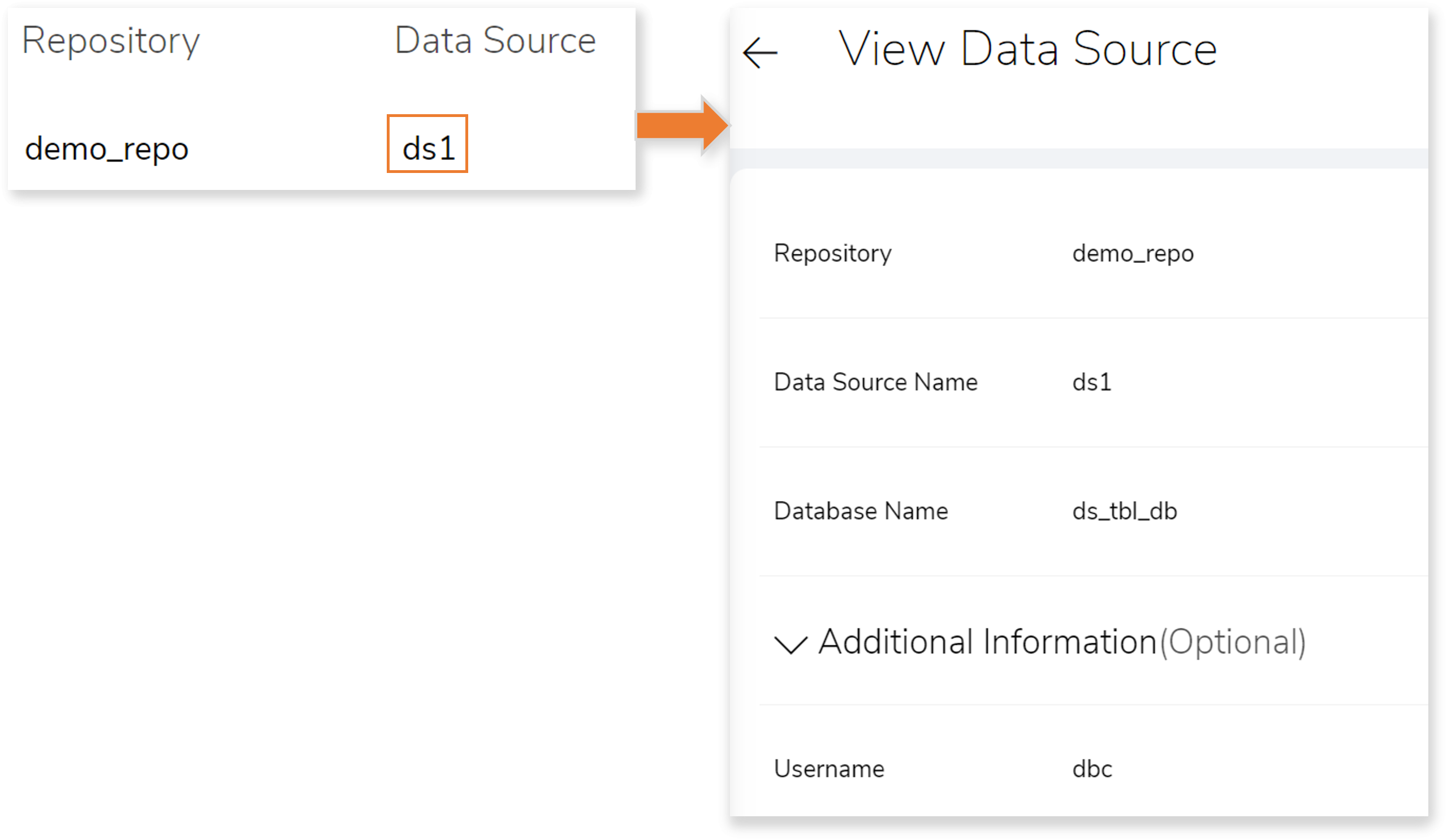
| View the details of repository or data source | Choose any of the methods to view the details of the repository or data source:
- In Newly Added , select the repository or data source.
- In Recently Viewed, select the repository or data source.
- Click Open Data Catalog at the top right corner of the Data Catalog page.
 |
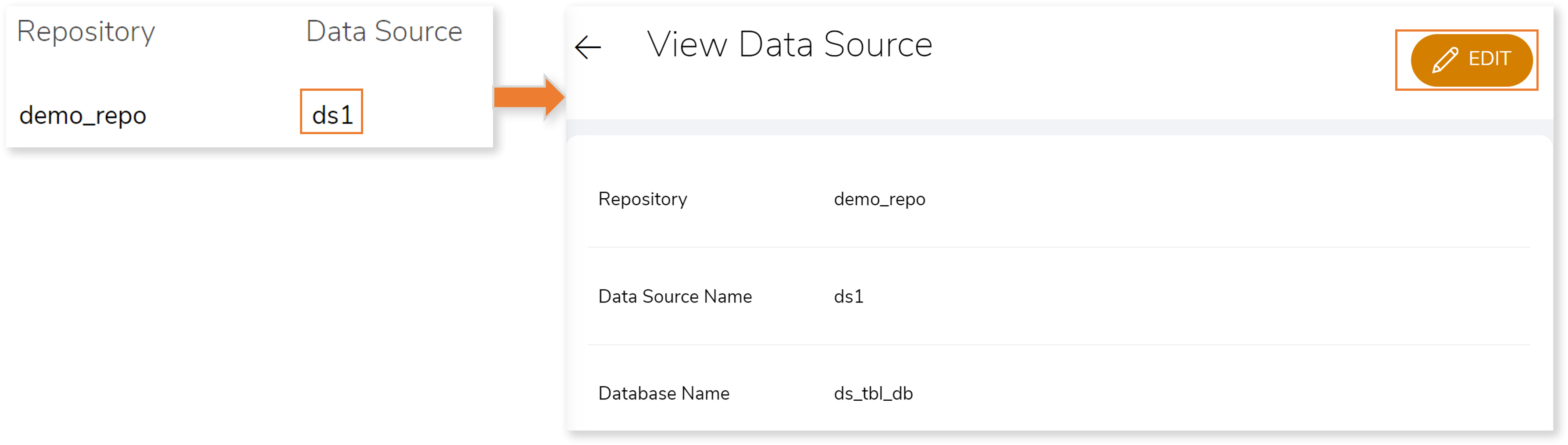
| Edit the details of the repository or data source | - In Newly Added or Recently Viewed or Open Data Catalog, select the repository or data source.
- Click EDIT.
 |
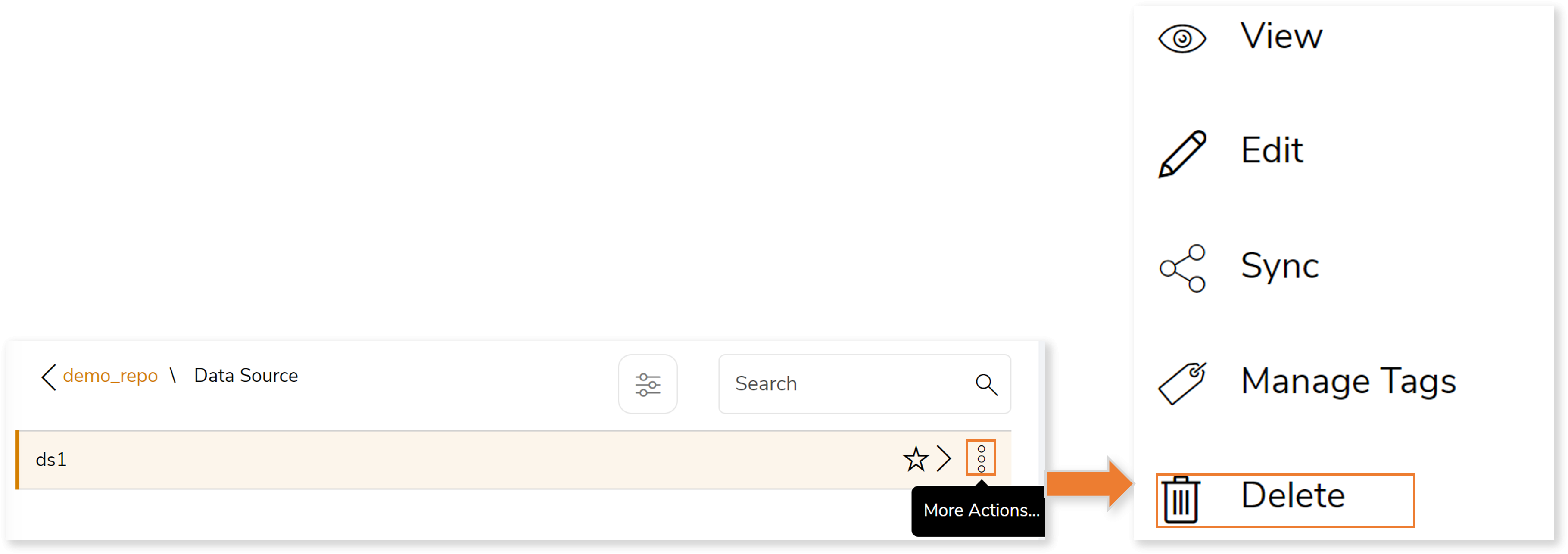
| Delete the repository or data source | - Click Open Data Catalog at the top right corner of the Data Catalog page and then choose the repository or data source that you need to delete.
- Click More actions.
- Click Delete.
 |
You can apply:
| Feature | Icon | Use |
| Mark Favorite |  | To mark your favorite repository, data source, or entity. |
| Edit |  | To edit or make changes to the available data. |
| Filter |  | To filter the repository. |
| View |  | To view the details of the repository or data source. |
| Sync |  | To sync the data source entities. |
| Manage Tags |  | To add or edit tags. |
| Delete |  | To delete repository or data source. |
| Details |  | To view the details of the repository, data source, or entity.
|
 Leaplogic