Configuring SAP BO to Power BI Conversion Stage
This topic provides steps to configure the SAP BO to Power BI conversion.
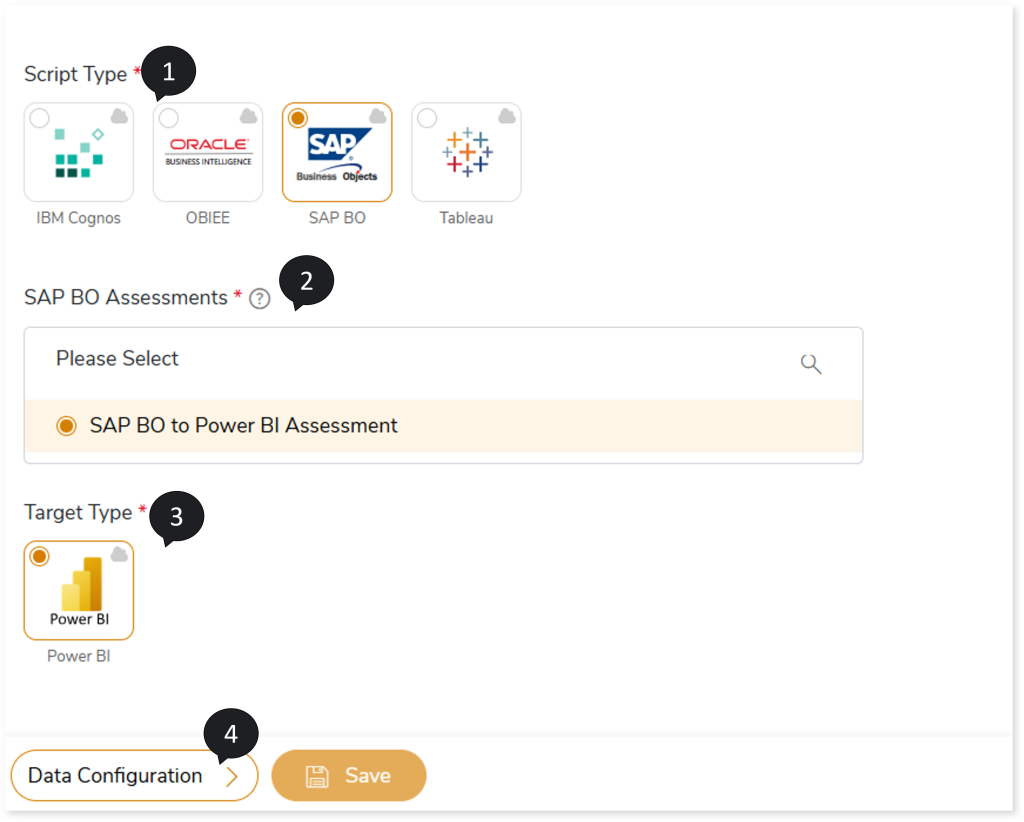
- In Script Type, select SAP BO.
- In BI Assessments, select the report from the BI assessments that you want to transform.
- In Target Type, select Power BI.
- Select Data Configuration to configure the data for conversion.
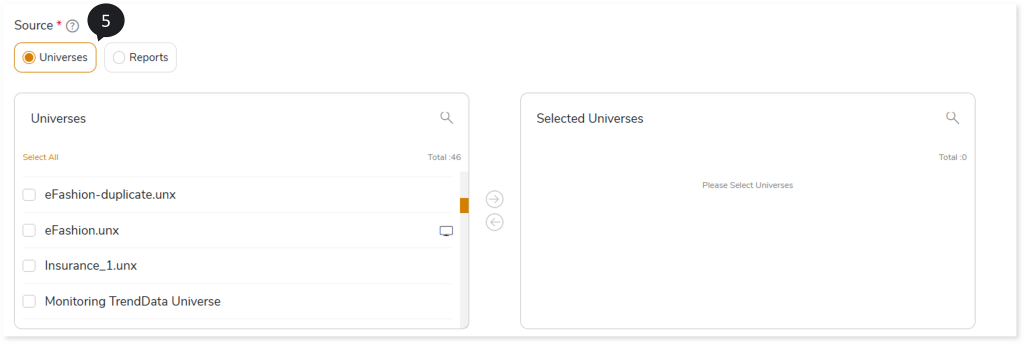
- In Source, select the Universes or reports you need to transform. To select the universes or reports to transform, follow the steps below:
- Select Universes/ Reports.
- Select the required universes or reports from the Universes or Reports card.
- Click
 to move the selected universes or reports to the Selected Universes or Selected Reports card.
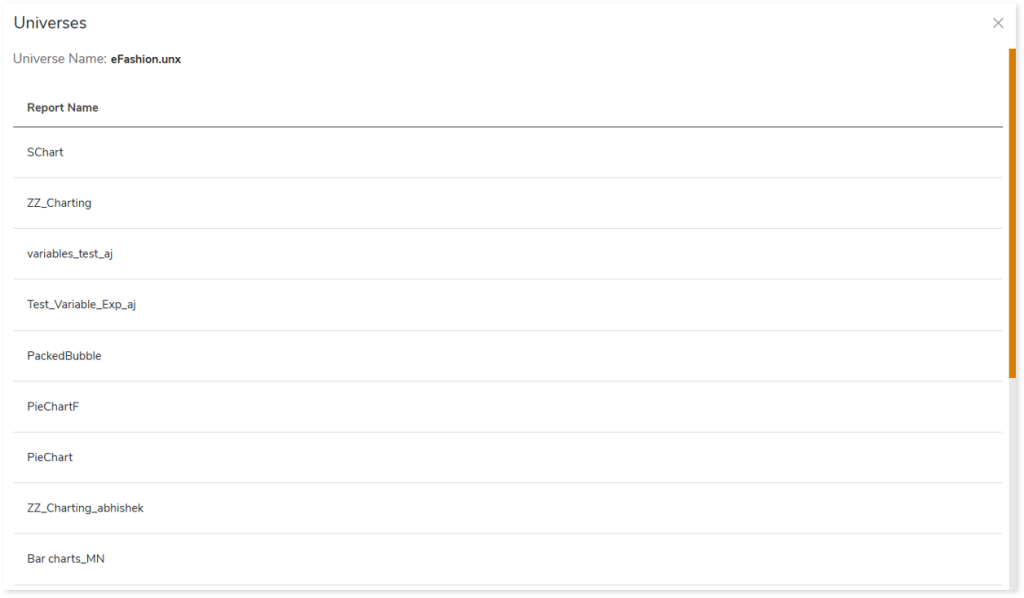
In the Universes or Selected Universes card, click  on the preferred universe to see all reports associated with it.
Similarly, in the Reports or Selected Reports card, click on the preferred report to see the associated universe.

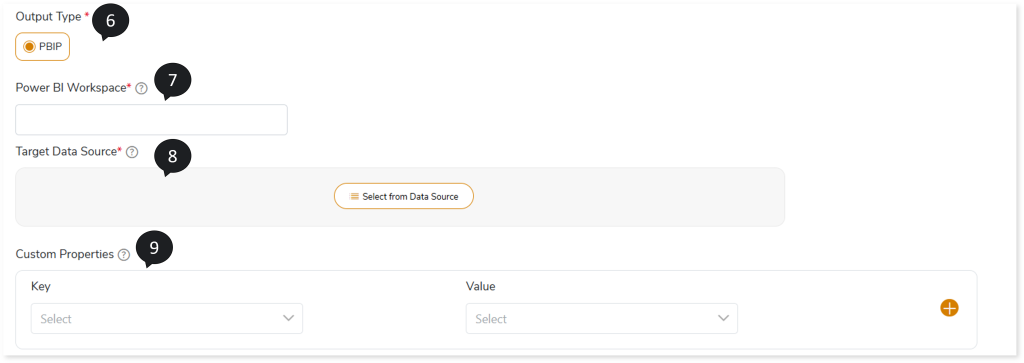
- In Output Type, select PBIP as the output type format for the generated artifacts.
- In Power BI Workspace, provide the workspace name where you want to publish the output artifacts.
- In Target Data Source, select the data source that contains the connection details such as host name, schema, etc., required for Power BI to access the underlying database.
- In Custom Properties, define key-value pairs to dynamically configure the custom property at runtime. To define custom properties, select the existing key-value pair from the dropdown or enter the property value manually.
The table below lists all custom properties along with the key-value pair.
|
Key |
Definition |
Value |
|
Upper Lower Case Type Key |
Used to configure the case format for queries in the respective target database. |
- Lower Case - To apply lower case to all target queries
- Upper Case - To apply upper case to all target queries
- Blank - To avoid case formatting and to retain the original format of the queries.
|
- In AI Augmentation, select the preferred Transformation model to convert calculations that require augmented transformation and then optimize them and validate them for accuracy and optimal performance.
- In Transformation Model, select the preferred Transformation model to convert calculations that are not handled by the default LeapLogic Core transformation engine to the target equivalent. The Transformation Model supports both Open-Source AI models (LeapLogic) and Enterprise AI models (Databricks Mosaic AI, Amazon Bedrock such as Claude, Nova, etc.) for transformation.
The Open-Source AI models include:
- OpenOrca 7B, GPTQ 4-bit quantized Model (Hugging Face), Llama 8B, 16-bit quantized Model (Ollama), and Llama 8B, 4-bit quantized Model (Ollama): To convert small- to medium calculations.
- Code Llama 34B, GPTQ 4-bit quantized Model (Hugging Face): To convert complex calculations.
- In Additional Prompt, provide supplementary instructions in addition to system-generated prompts.
- In Response Fine Tuning, provide examples based on the additional prompt to fine-tune the response to align the generated output with your preferred level of detail.
- In Review Model, select one or more Review models from to perform syntax validation on the calculations transformed by the LeapLogic Core engine and the Transformation Model. The Review model validates the transformed calculations and recommends any changes as required until the calculation is thoroughly verified. You can configure multiple Review models. When multiple Review models are configured:
- The first Review model validates the calculations transformed by the LeapLogic Core engine and the Transformation model. If any calculations are identified as incorrectly transformed, it suggests updated calculations.
- The updated calculations are then passed to the next Review model, which validates them and suggests corrections, if required.
- This process continues through all configured Review models until the calculations are successfully validated, and the optimized queries are generated.
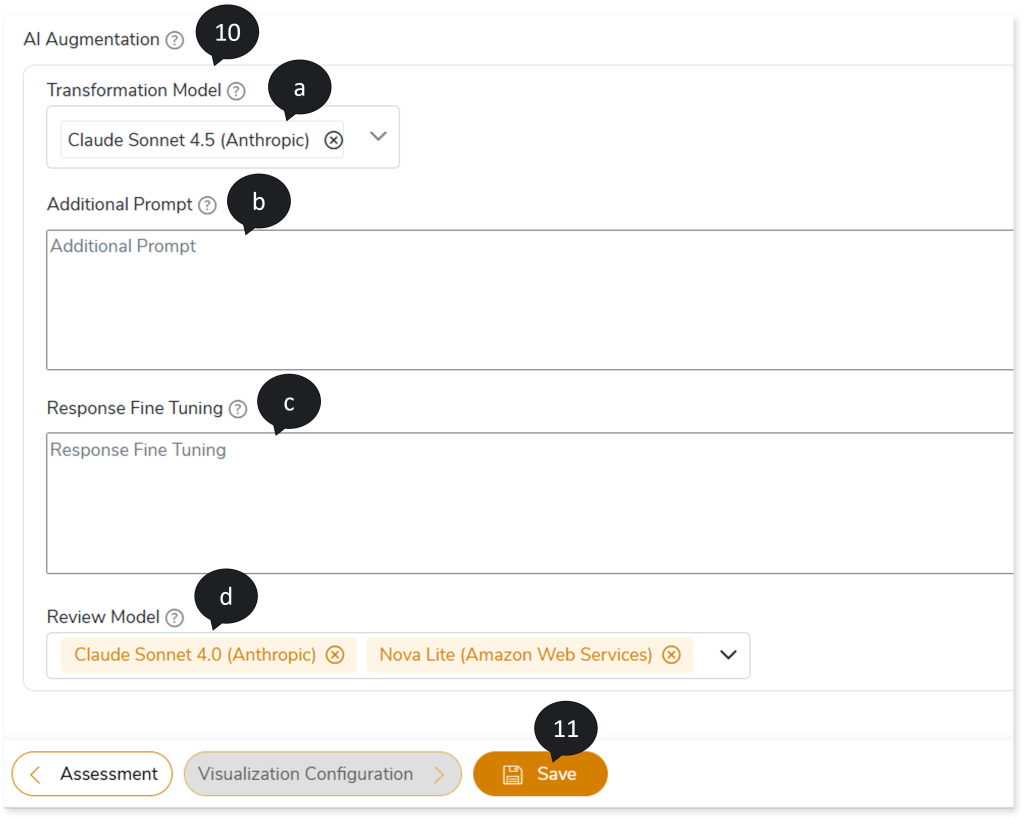
- Click Save to update the changes.
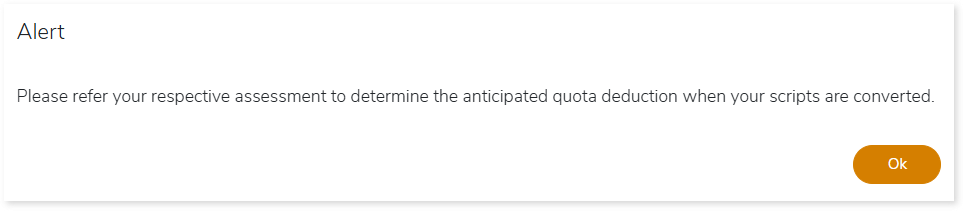
- An alert pop-up message appears. This message prompts you to refer your respective assessment to determine the anticipated quota deduction required when converting your scripts to target. Then click Ok.
- Click
 to provide a preferred pipeline name and to save the pipeline.
- Click
 to execute the integrated or standalone pipeline. Clicking (Execute) navigates you to the pipeline listing page which shows your pipeline status as Running state. It changes its state to Success when it is completed successfully.
- Click on your pipeline card to see reports.
To view the SAP BO to Power BI Conversion report, visit SAP BO to Power BI Conversion report.
 Leaplogic